Search Docs by Keyword
Geneious license
NOTE: If you are from HCSPH or HMS, please contact HMS IT for access to a Geneious license.
Geneious requires an individual license for use of their desktop app.
FASRC can initiate the license process for you as long as you have a Harvard Key and an active FASRC account.
If you do not have a Harvard SSO/Key login you cannot use this service.
Request A License
Submit a help ticket to FASRC in the following manner:
- Email rchelp@rc.fas.harvard.edu ( read the next steps before proceeding )
- with the Subject “Geneious license request”
- Include your official Harvard Key email address ( the address you use for Harvard Single Sign-On/SSO )
- Include your FASRC username
- Include your Name, your School, and Lab/PI group name
FASRC will process your request as soon as possible, but please allow a couple of days lead-time.
Email from Geneious
Once FASRC has registered you in the Geneious license system, you will receive an email from Geneious with further instructions.
Install the desktop application
Once your license request has been entered by FASRC and you receive the email from Geneious, you can download the installer at: https://www.geneious.com/download
- Install the app to your Windows/Mac/Linux desktop.
- See the email from Geneious for details to activate the license or follow the steps below in the Activate your license section.
The Geneious app will inform you when the time comes that you need to renew your license.
Activate your license
To activate the license with HarvardKey:
- Open Geneious software.
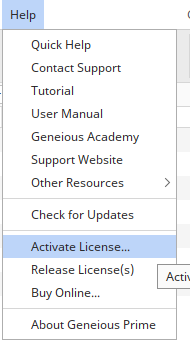
- On the top menu, click “Help”.
- Select “Activate License”.
- At the bottom, select “Continue in Your Browswer”.
- In your web browser (e.g. Chrome, Firefox, Safari, etc.), click “Email Sign In”.
- Type your HarvardKey email.
- Select “Log In with SSO”.
- Log in with HarvardKey.
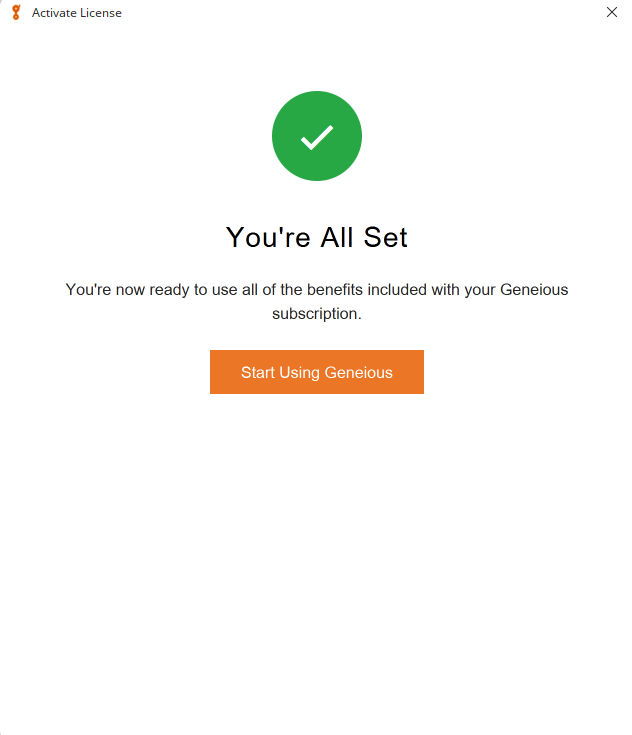
- In the Geneious window, you should see a message “You’re all set” with a checkmark